Guide for users switching from Windows
Mac keyboard shortcuts: basic guide for users
If you're coming from a Windows PC, keyboard shortcuts on a Mac may feel odd at first. Most work the same way, but with the Control key replaced by Command. In this guide you'll see the most useful commands for copying, pasting, cutting, searching, saving, switching apps and taking screenshots.
Mac versus PC
The most important key on a Mac is Command
On Windows many shortcuts use the Control key. On a Mac most of those shortcuts use the Command, shown with the symbol ⌘. So if you want to copy, paste or save, you'll normally use Command instead of Control.
For example, on a PC you copy with Ctrl + C. On a Mac you copy with Command + C. The same applies to paste, cut, save, search and select all.
Command ⌘
It's the main key for the most common shortcuts: copy, paste, save, search or open a new tab.
Option ⌥
Similar to Alt in many uses. It's used for alternate functions, special characters and advanced combinations.
Control ⌃
Present on the Mac, but it doesn't replace Command for basic shortcuts. It's not the same as Control on Windows.
Quick rule: if you're coming from Windows and remember a shortcut with Ctrl, first try the same shortcut on the Mac using Command.
Infographic
Visual summary of Mac key combinations
This infographic compares the most common Mac shortcuts with their PC/Windows equivalents. It's useful if you've just switched computers or are starting to use macOS.
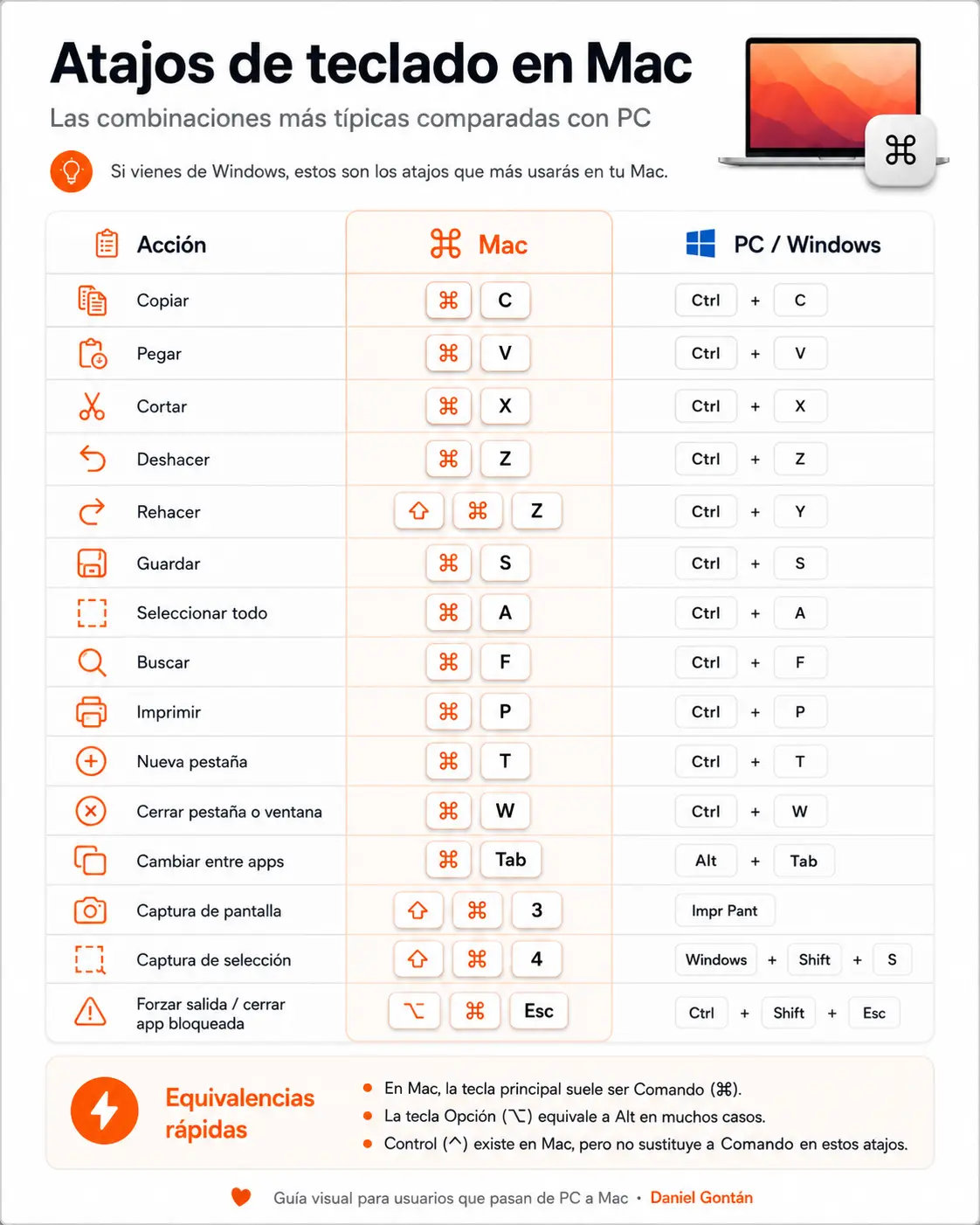
Basic shortcuts
Most used key combinations on Mac
These are the commands you'll use most day-to-day. They work in most Mac applications: Finder, Safari, Mail, Pages, Word, Excel, Preview and many others.
Copy
Copies the selected text, file or item.
Paste
Pastes the content you previously copied.
Cut
Cuts text or editable content to move it elsewhere.
Undo
Reverts an action, such as deleting text or moving an item.
Redo
Restores an action you've just undone.
Save
Saves the open document or file.
Select all
Selects all text, files or items in a window.
Find
Finds a word within a document, web page or app.
Screenshots
How to take screenshots on a Mac
On a Mac you don't use the “Print Screen” key like on many PC keyboards. macOS has its own shortcuts to capture the whole screen, a selected area or to open the screenshot panel.
Full screen
Press ⇧ + ⌘ + 3 to take a screenshot of the entire screen.
Selected area
Press ⇧ + ⌘ + 4 then drag to select the area you want to capture.
Screenshot panel
Press ⇧ + ⌘ + 5 to open the capture and screen recording options.
Common mistakes
Common errors when switching from Windows to Mac
At first it's normal to get confused by the keys. Most mistakes come from trying to use the Mac exactly like a PC.
- Using Control instead of Command to copy, paste or save.
- Looking for the “Print Screen” key to take screenshots.
- Not distinguishing between Command, Option and Control.
- Confusing closing a window with quitting an application completely.
- Not knowing how to force quit when an app freezes.
If an application becomes unresponsive, you can use Option + Command + Esc to open the Force Quit window.
Frequently asked questions
FAQs about Mac keyboard shortcuts
What is the equivalent of Ctrl on a Mac?
For the most common shortcuts, the practical equivalent of Ctrl on Windows is usually Command on the Mac. For example, copy is Ctrl + C on Windows and Command + C on Mac.
How do you copy and paste on a Mac?
Use Command + C to copy. Use Command + V to paste. It's one of the biggest changes if you're coming from Windows.
How do I take a screenshot on a Mac?
To capture the whole screen use Shift + Command + 3. To select a specific area use Shift + Command + 4.
How do I close a frozen app on a Mac?
Press Option + Command + Esc to open the Force Quit window. From there you can select the frozen app and quit it.
Does the Control key on the Mac work the same as on Windows?
Not exactly. The Control key exists on the Mac, but many basic shortcuts use Command. Control is used for other specific system functions.
Can Daniel Gontán help me if I'm starting with a Mac?
Yes. We can help with initial setup, migration from a PC, mail, backups, app installation, macOS and basic usage questions.
Apple technical support
Starting with a Mac and need help?
If you're coming from Windows, have just bought a Mac, or need to configure mail, backups, apps or files, we can help get the device ready and explain the basics to use it safely.
Request help with your Mac