Practical guide to MacBook Air, MacBook Pro and Windows
How to connect 2 monitors to a MacBook Air or Pro 2020
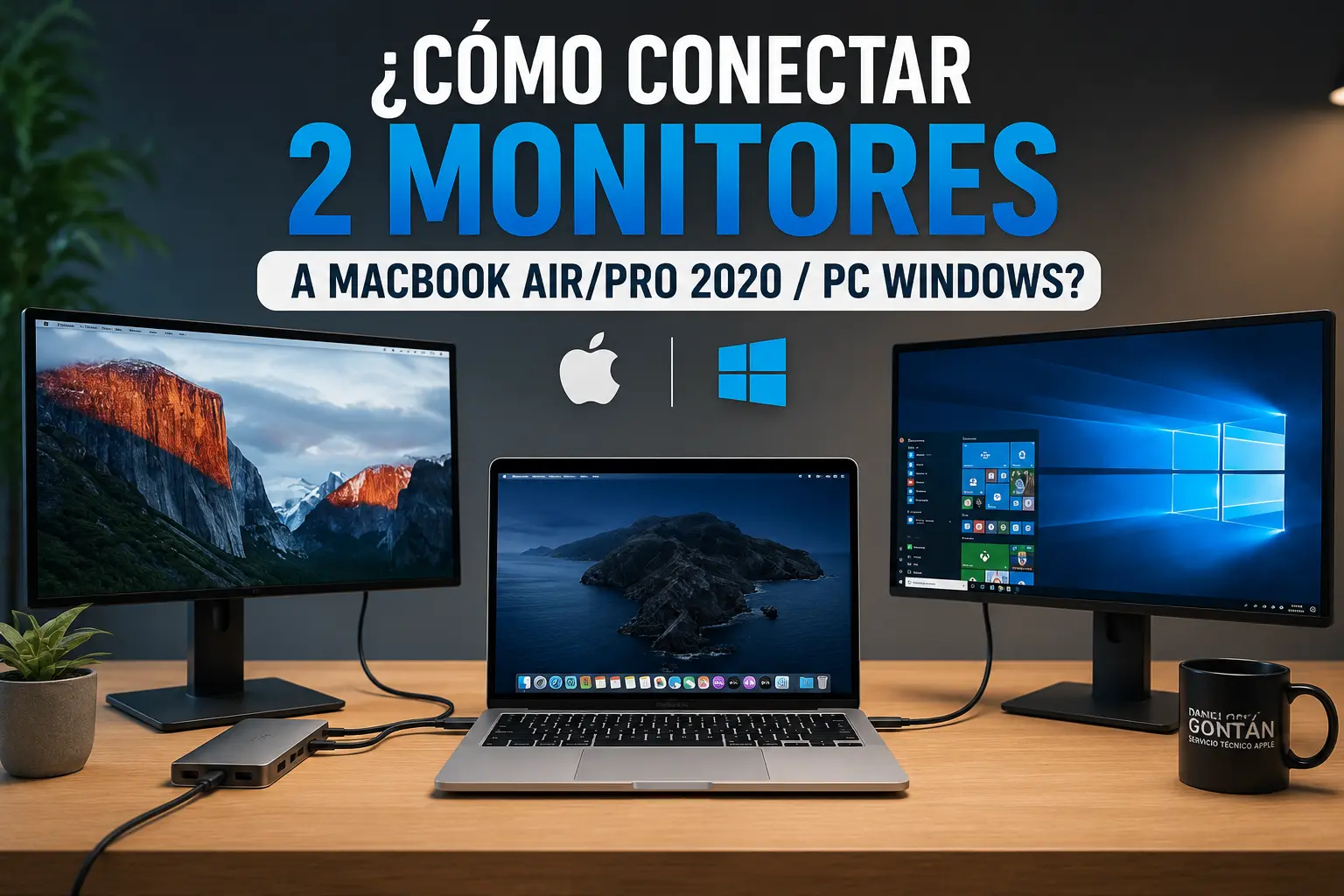
Want to connect two external monitors to a 2020 MacBook Air or MacBook Pro and don’t know why only one display works? In this guide I explain the limitation Apple imposes, what you need to buy and how to configure DisplayLink to run two independent screens.
Quick answer
Can you connect 2 monitors to a MacBook Air or Pro 2020?
Yes, but with caveats. On 2020 MacBook Air and MacBook Pro models with the M1 chip, Apple states native support for a single external display up to 6K at 60 Hz. That means if you connect a standard USB-C hub with two HDMI outputs, typically only one external monitor will work or both screens will mirror the same image.
To use two external monitors as independent displays you need a dock or adapter compatible with DisplayLink and the DisplayLink Manager software installed on macOS. DisplayLink allows additional displays to be managed via software and a compatible dock.
The key point
You don’t need just any USB-C hub with two HDMI ports. You need a port station that explicitly supports DisplayLink. That’s the difference between mirroring the screen and being able to work with two separate external monitors.
Recommended product
The solution: a DisplayLink-compatible docking station
The easiest way to connect two external monitors to a 2020 MacBook Air or MacBook Pro is to use a docking station with DisplayLink technology. This type of dock acts as an intermediary between the Mac and the monitors, allowing you to output to more than one display even when the Mac has a native limitation.

DisplayLink-compatible docking station
These docks typically include HDMI outputs, USB ports, Ethernet, audio and other useful ports to turn your MacBook into a multi-monitor workstation.
Note: before buying, check that the model clearly states DisplayLink compatibility and that it supports your version of macOS.
Important
Why a normal USB-C hub usually won't work
Many users buy a USB-C adapter with two HDMI ports thinking they can connect two monitors to the MacBook. The problem is that on several M1 MacBooks the limitation isn’t just the number of ports but the native support for external displays.
That’s why a standard hub can cause the two external displays to mirror each other, only detect one display, or leave one screen black. A DisplayLink dock, by contrast, uses its own graphics management system to add external displays.
Normal USB-C hub
May be fine for connecting a monitor, keyboard, mouse or storage, but doesn’t always allow two independent external monitors on M1 MacBooks.
Thunderbolt dock
Can offer greater speed and stability, but on Macs limited by Apple it doesn’t always remove the one-external-display restriction.
DisplayLink dock
This is the option typically used to work with two independent external monitors on 2020 MacBook Air/Pro models with the M1 chip.
Benefits
Advantages of working with two monitors
Working with two monitors can greatly improve productivity, especially if you use the Mac for design, editing, programming, email management, video calls, documentation or administrative tasks.
More workspace
You can have your browser on one screen and documents, email, Excel, editing or work tools on the other.
Fewer window switches
You avoid constantly minimising and switching applications. Everything is more visible and organised.
Better workflow
If you edit videos, write articles, work with data or deal with clients, two screens make the job more comfortable.
Installation
How to install DisplayLink Manager on macOS
For a DisplayLink-compatible dock to work correctly on a Mac, you must install DisplayLink Manager. Synaptics maintains the official DisplayLink software for macOS and updates it for recent system versions.
- Download DisplayLink Manager from Synaptics' official website.
- Install the application following the installer prompts.
- Grant screen recording permissions if macOS requests them. This permission is necessary for DisplayLink to manage the displays.
- Enable automatic launch at login so that DisplayLink Manager opens when you sign in.
- Connect the docking station and then connect the monitors using HDMI or DisplayPort.
- Arrange the displays from System Settings > Displays.
Technical tip
After installing DisplayLink Manager, restart the Mac before testing the final setup. Many detection issues are resolved simply by restarting with the dock connected.
Configuration
How to configure the two displays on a Mac
Once DisplayLink Manager is installed and the monitors are connected, go to macOS display settings to organise the desktop.
1. Open System Settings
Go to System Settings and open the Displays section. You should see the MacBook's internal display and the external screens listed there.
2. Turn off display mirroring
If the screens show the same image, check that mirroring isn’t enabled. To use two monitors you need an extended desktop.
3. Arrange the monitors
Drag the displays to match their physical order on your desk: left, centre and right.
4. Adjust resolution and scaling
If text looks too small or fuzzy, change the scaling for each monitor until you find a comfortable setting.
Windows
Does it also work for Windows PCs?
Yes. Many DisplayLink docking stations also work on Windows. In that case you’ll usually need to install the appropriate Windows driver and configure the displays from the system's display settings.
On Windows PCs there are often fewer limitations than on some M1 MacBooks, but it’s still important to check dock compatibility, the monitors’ maximum resolutions and the connection types: HDMI, DisplayPort, USB-C or Thunderbolt.
Common issues
What to do if the Mac doesn't detect the second monitor
If you’ve connected everything and the second monitor doesn’t appear, check these points before assuming the dock is faulty.
Check the dock is DisplayLink-compatible
Not all docks with two HDMI ports are DisplayLink. It should be clearly stated in the product specifications.
Update DisplayLink Manager
macOS updates can affect DisplayLink’s operation. Use the most recent compatible version.
Check macOS permissions
On macOS, DisplayLink may require screen recording permissions. Without those, the additional display might not work.
Try different cables and ports
A faulty HDMI cable or a particular monitor port can prevent a display being detected correctly.
Restart with the dock connected
Shut down the Mac, connect the dock and monitors, then power it back on. It’s a simple test and often effective.
Avoid excessively high resolutions
If you use two 4K monitors, adjust refresh rate and scaling. DisplayLink doesn’t always perform like a native video output.
Real limitations
What you should know before using DisplayLink
DisplayLink is a very useful solution for multiple monitors, but it’s not exactly the same as connecting displays natively via Thunderbolt or HDMI. For office tasks, browsing, email, programming, documents and everyday management it usually works well.
For demanding video editing, gaming, animation, professional colour work or tasks where latency matters, a native video output may be better. DisplayLink depends on the software, the dock, cabling and the macOS version.
Honest summary
If you want two monitors for working, writing, programming, managing email or editing documents, DisplayLink can be a very practical solution. If you need maximum graphics performance, study the Mac model and monitor types carefully before purchasing.
Useful accessories
Additional devices recommended for working with two monitors
Besides the docking station, there are several accessories that can greatly improve your MacBook workstation.
External keyboard and mouse
If you use two monitors, an external keyboard and mouse make working much more comfortable.
MacBook stand
Raising the laptop improves ergonomics and helps keep your desk tidier.
External SSD
An external SSD is useful for backups, editing large files and additional storage.
Frequently asked questions
Frequently asked questions about connecting 2 monitors to a MacBook
Can I connect two external monitors to a MacBook Air M1 from 2020?
Natively, the 2020 MacBook Air M1 is limited to one external display. To use two independent external monitors you need a DisplayLink-compatible solution.
Will any USB-C dock with two HDMI ports work?
No. Many USB-C docks with two HDMI outputs don’t provide two independent displays on an M1 MacBook. It must be a dock compatible with DisplayLink.
What is DisplayLink?
DisplayLink is a technology that allows additional displays to be connected via a compatible adapter or dock and software installed on the computer.
Do I have to install any software on the Mac?
Yes. On macOS you need to install DisplayLink Manager from Synaptics' official website and grant the permissions the system requests.
Does it work the same as a natively connected display?
Not exactly. For productivity it usually works well, but DisplayLink depends on software and may not be ideal for gaming, demanding video editing or graphics-heavy work.
Can I use the MacBook screen in addition to the two monitors?
Yes, in many setups you can use the MacBook’s internal display alongside two external monitors connected via a DisplayLink-compatible dock.
What do I do if both monitors show the same image?
Check that the dock is DisplayLink-compatible, that DisplayLink Manager is installed and that mirroring is not enabled in System Settings.
Does it also work on Windows?
Yes, many DisplayLink docks also work on Windows by installing the appropriate driver and configuring the displays from the system settings.
Your Mac not detecting displays?
If your Mac doesn’t recognise the monitor, it may not be just the adapter
If you’ve tried several cables, docks or monitors and your Mac still doesn’t detect an external display, there may be an issue with the USB-C port, logic board, power, system or configuration. We can help check the device.